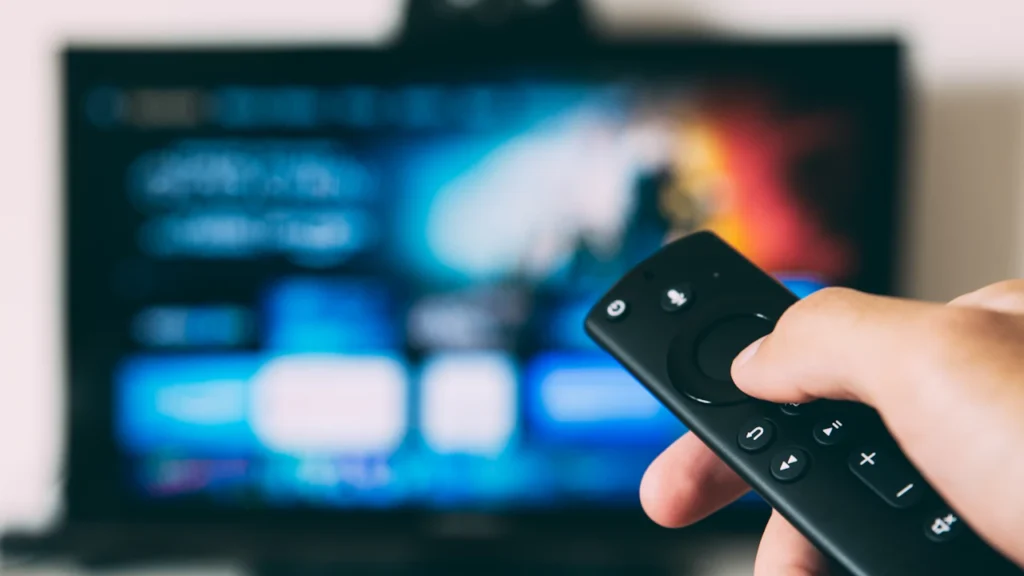
Amazon’s Fire TV Stick is one of the most popular ways to turn any TV with an HDMI port into a smart TV. Setup is quick, but a few choices along the way make a big difference to privacy, picture quality and reliability.
Follow these steps in order and you’ll be watching in about 15 minutes.
In this guide
What you need
- A TV with a free HDMI port (HDCP 2.2 or later for 4K models)
- The Fire TV Stick, power cable and power adapter from the box
- Your Wi-Fi network name and password
- An Amazon account (you can create one during setup)
Use the included power adapter rather than a USB port on your TV. Many TV USB ports don’t supply enough power, which can cause warnings, freezes or reboots.
Step 1: Connect the stick
- Plug the stick into an HDMI port. If space is tight, use the HDMI extender if one is included.
- Connect the USB power cable to the stick and the power adapter, then plug the adapter into a wall outlet.
- Turn on your TV and switch to the matching HDMI input.
Step 2: Pair the remote and choose a language
The remote usually pairs automatically once batteries are in. If it doesn’t, press and hold the Home button for about 10 seconds. Then pick your language.
Step 3: Connect to Wi-Fi and update
Select your network and enter the password. The stick will then download any available software updates — let this finish, as updates fix bugs and improve app compatibility. It may restart once or twice.
Step 4: Sign in to your Amazon account
Sign in on screen, or choose the option to register using a code on another device, which is quicker than typing with a remote. You can also enable parental controls at this stage with a PIN.
Step 5: Install your apps
During setup you may be offered a list of popular apps. You can install them now or later from the Find / Apps section. Install only from the Amazon Appstore — the official store for Fire TV.
Not sure which services to add? Browse our legal streaming apps and free streaming apps guides.
Settings worth changing on day one
Menu names can vary slightly by model and software version, but these are the settings most people should review:
- Privacy: in Settings › Preferences › Privacy Settings, review device and app usage data collection and interest-based ads.
- Featured content: turn off video and audio autoplay on the home screen if you find it distracting.
- Display: in Settings › Display & Sounds, confirm the resolution matches your TV, and enable frame-rate matching if available for smoother movies.
- Equipment control: let the Fire TV remote control your TV’s power and volume.
- Unknown sources: leave installation of apps from unknown sources turned off. It keeps unvetted apps off your device.
Troubleshooting common setup problems
- Black screen: check the TV input, try another HDMI port and remove the extender to test.
- Remote won’t pair: replace the batteries and hold Home for 10 seconds while close to the stick.
- Low-power warning: switch to the original adapter and a wall outlet.
- Buffering: see our guide to fixing buffering.
You’re ready to stream
Once setup is done, sign in to the official apps for the services you subscribe to. For help choosing, read our live TV streaming comparison or visit the devices hub for other hardware.